Help Center
Cannot sign in? Start here.
Fix it now
Three quick checks that solve most cases without having to ask for help.
Authenticator app codes depend on the phone's clock. Open this page on the phone with the app to check its time.
Frequently asked questions
I forgot my password
Ask for a recovery link: it goes to the account's email, lasts 24 hours and can be used once. If you ask for more than one, only the latest works.
I do not know which login to use
You can sign in with the account's username, email, alias or mobile number. If you remember none of them, use the check above: we email the account every way to sign in.
It says the login or password is wrong, but I am sure they are right
Check whether Caps Lock is on and that no space was left at the end. You may also have more than one account, or your account may have been merged into another. The check above tells you by email what is going on.
I do not receive the recovery or confirmation email
Wait a few minutes and look in your spam or promotions folder. Two requests must be 2 minutes apart. If it still does not arrive, the account's email may be wrong or missing: only your school's office can correct it.
The link in the email says it is not valid
Recovery links last 24 hours, can be used once, and a new request cancels the earlier ones. Some email programs cut long links. Check the link above.
The two-step verification code is not accepted
The app's code changes every 30 seconds and depends on the phone's clock: set the time to automatic. You can also ask for the code by email, or use one of the recovery codes you saved when you turned the verification on.
I lost my phone, or it was stolen
Sign in at the portal (with a recovery code, if the authenticator app was on that phone) and, under Security, end the apps' session on that phone. Without recovery codes, your school's office can ask support to turn two-step verification off.
I can sign in, but I do not see my school
It is the school that links your account to it. If the account is new, it may take a while until the school adds it: talk to the office.
The school shows my old email or mobile number
After changing your details in the account, sign in once to the school's platform: that is when the details go over.
I merged two accounts and can no longer sign in with the old one
After merging, you sign in only with the account that remained. The check emails the old account the name of the account to sign in with now.
Still need help? Contact us
Step-by-step guides
What people do most often in the e-Schooling Account, step by step, with pictures of the portal (shown in Portuguese). Open the guide you need.
Signing in to the account
-
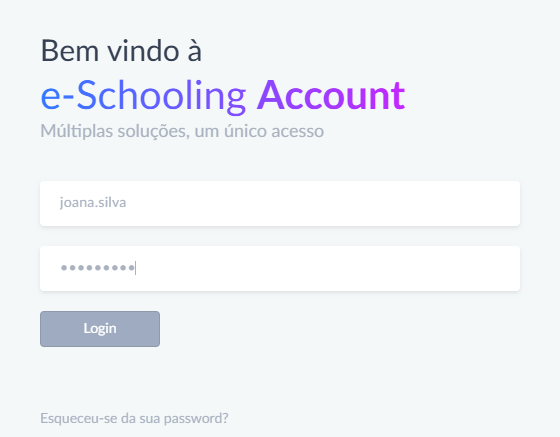
Type what you use to sign in — username, email, alias or mobile number — and the password, and press Login.
-
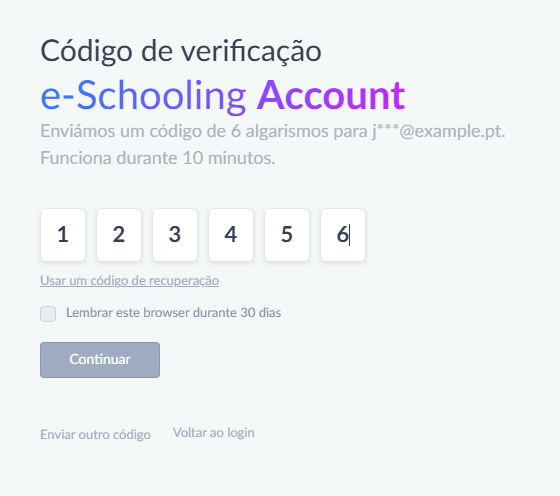
If the account has two-step verification, type the 6-digit code you received by email or that the authenticator app shows, and press Continue. On a computer that is only yours, you can tick "Remember this browser".
-
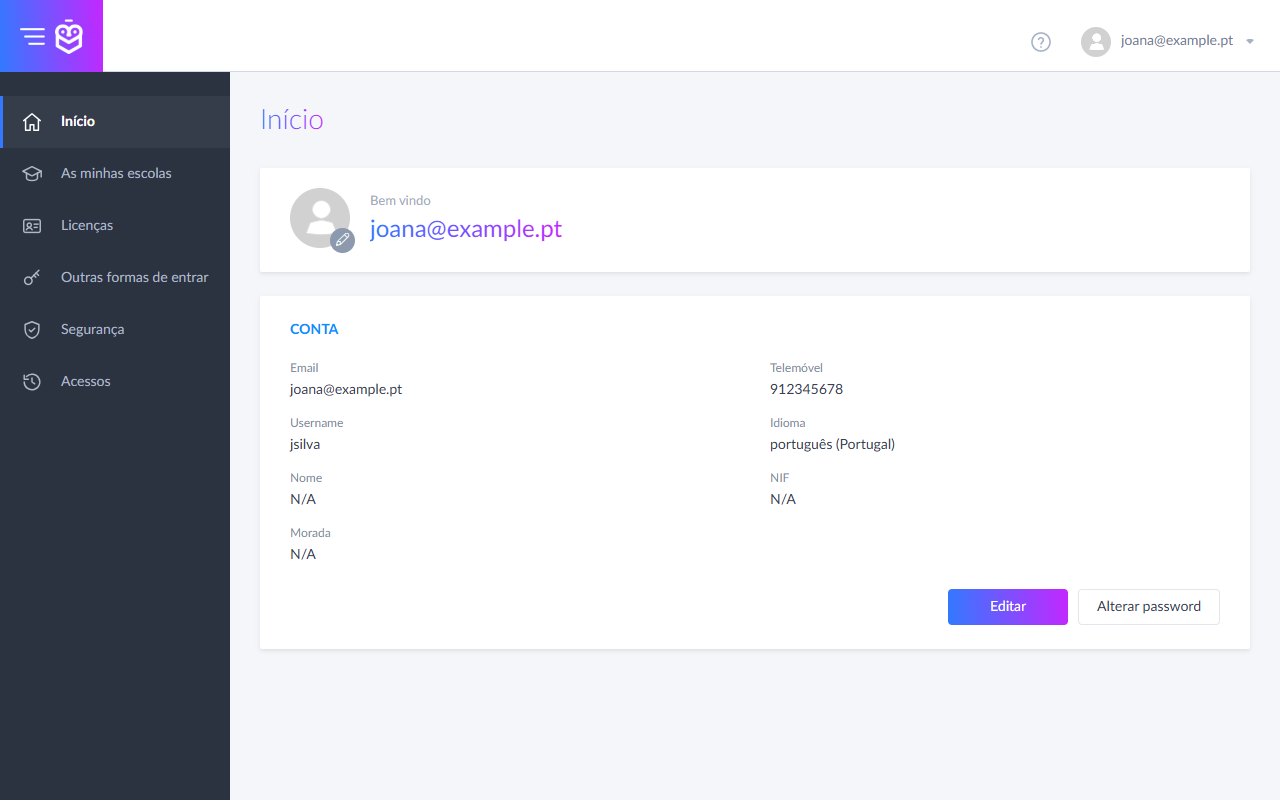
Done: you see your account's details and, in the menu on the left, your schools, licences, security and sign-ins.
Recovering the password
-
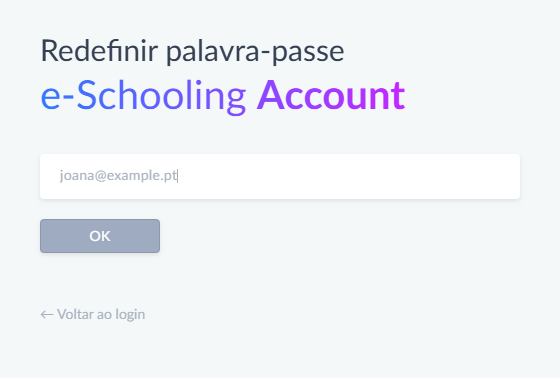
On the login page, press "Forgot your password?". Type the account's email or login and press OK.
-
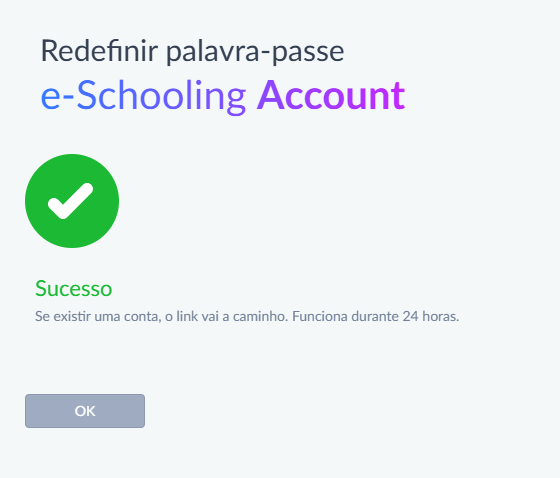
If there is an account, you receive an email with a link. The link works for 24 hours and only once; if you ask for another, only the latest works. Check your spam folder too.
-
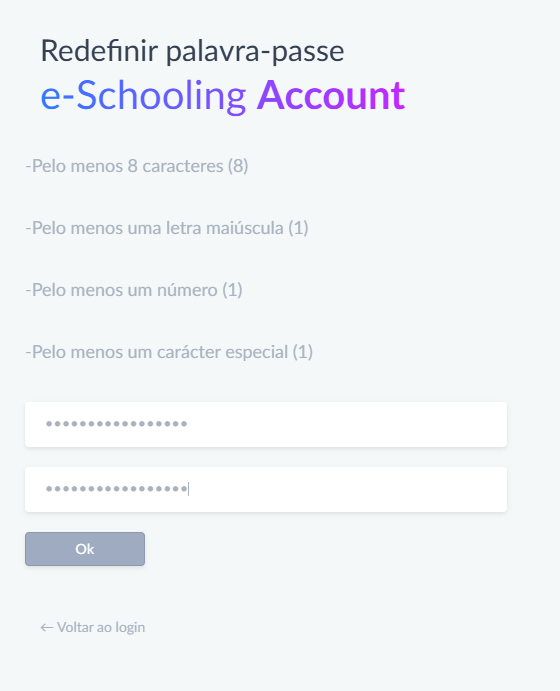
Open the link in the email, type the new password twice, following the rules shown, and press Ok. From then on you sign in with the new password.
Setting the first password (school invitation)
-
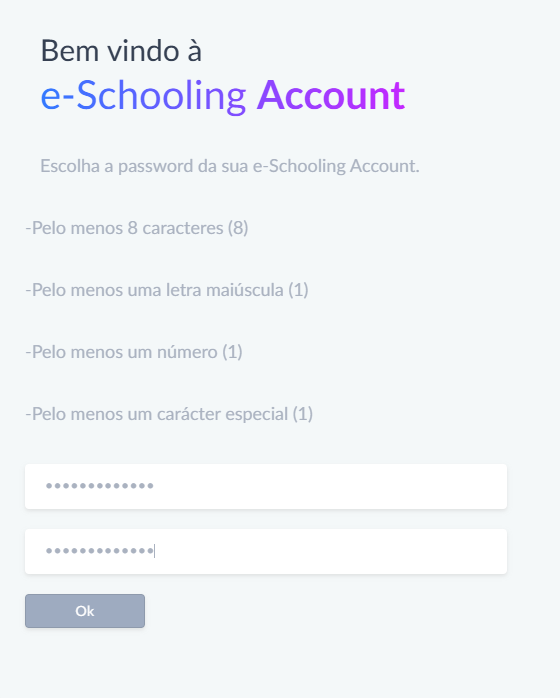
When the school creates your account, you receive a welcome email. Open the link, type your password twice, following the rules shown, and press Ok. The invitation link does not expire.
Turning on two-step verification
-
Sign in and open "Security" in the menu. Choose the authenticator app (the safest) or the code by email.
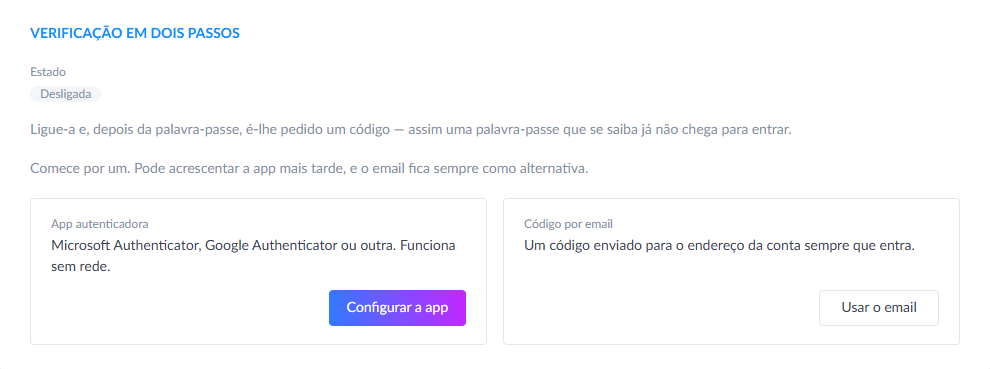
-
With the authenticator app (Google Authenticator, Microsoft Authenticator or another), scan the QR code or type the key. Type the 6-digit code the app shows and press Switch on.
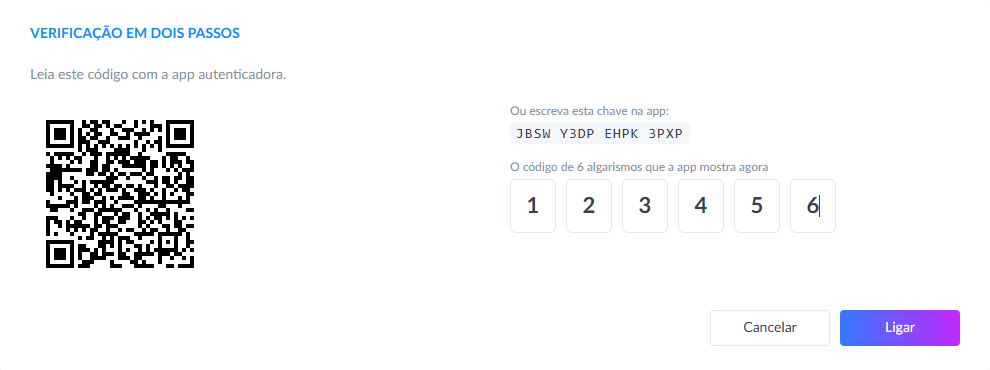
-
Keep the recovery codes somewhere safe: they let you in if you lose your phone. They are shown only once.
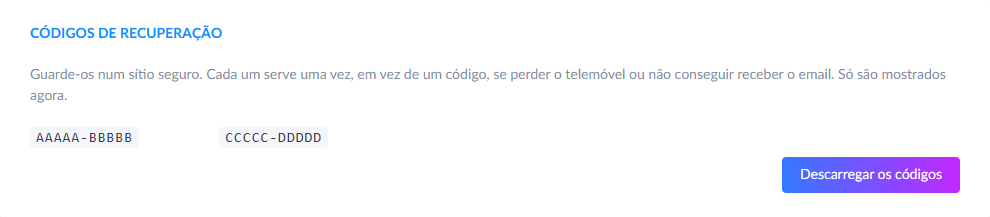
Ending the session on a lost phone
-
In "Security", under Devices, are the phones signed in through the apps. Press "Sign out" on the lost phone, or sign out of all of them at once. On that phone, the app asks for the password again.
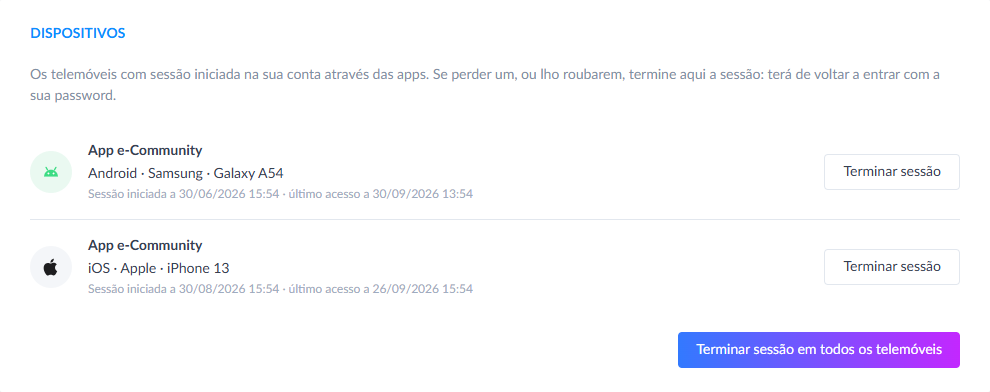
Seeing who signed in to the account
-
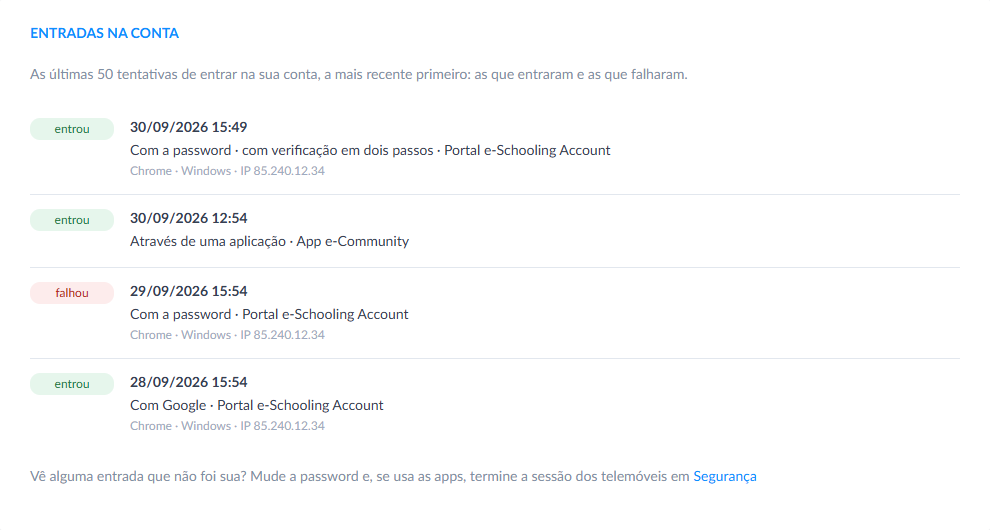
In "Sign-ins", in the menu, are the latest sign-ins to the account: when, how, through what, and whether they got in or failed. If you see one that was not you, change the password and end the phones' session.